
Guardrails are configurable safety and policy controls that help your institution manage how Hapax is used—especially when employees ask the AI Assistant questions or run workflows. When a Guardrail is triggered, Hapax can block the action, allow it but notify reviewers, or do both, depending on how you configure it.
Guardrails are enforced centrally in Hapax, so checks happen before agents and tools proceed with an action. In other words: the question/workflow step is evaluated first, and only then can Hapax continue.
What Guardrails are
A Guardrail is a rule (or set of rules) that evaluates user activity against your institution’s requirements. Guardrails can be used to:
-
Prevent unsafe, inappropriate, or out-of-scope requests
-
Enforce internal policies (e.g., “Don’t share sensitive customer data in chat”)
-
Route risky activity to reviewers (e.g., a manager or compliance reviewer)
-
Keep usage consistent across teams by applying the same policy controls everywhere
Hapax uses multiple layers of guardrails, including:
-
Security Guardrails to prevent unsafe or malicious use.
-
Domain Guardrails to keep questions within appropriate banking/technology contexts.
Note: These built-in layers operate alongside your institution’s Custom Guardrails.
What you can configure with Custom Guardrails
Custom Guardrails let your institution define:
-
Name and description (what the rule is and why it exists)
-
Whether the Guardrail is enabled
-
Whether the Guardrail is blocking (and what message the user sees if blocked)
-
Who gets notified when the Guardrail is triggered:
-
Notify Manager
-
Notify Others (specific users you select)
-
When Guardrails are evaluated
Guardrails can apply anywhere Hapax is about to take an action, including:
-
AI Assistant questions (chat prompts submitted in an AI Session)
-
Workflow runs (including steps where agents/tools would execute)
Because guardrails are centralized, the system checks activity consistently before proceeding.
What it looks like when a Guardrail is triggered
Below is what users and reviewers can expect to see, based on how the Guardrail is configured.
1) Guardrail is disabled
What the user sees:
-
Nothing. The request runs normally.
What reviewers see:
-
No notifications are sent from this Guardrail.
2) Guardrail is enabled (not blocking), with no notifications
What the user sees:
-
Nothing changes in the moment. The request runs normally.
What reviewers see:
-
No notifications are sent.
This configuration is uncommon—most institutions enable either blocking or notifications (or both) so that a triggered Guardrail has a clear outcome.
3) Guardrail is enabled with Blocking
When a Blocking Guardrail is triggered, the action is stopped.
What the user sees (AI Assistant chat):
-
Their request is denied, and Hapax displays the Response Message you configured for that Guardrail.
-
The AI does not proceed with an answer to the blocked request. (The Guardrail message replaces the usual response.)
What the user sees (workflow run):
-
The workflow run (or step) is stopped, and the run indicates it was blocked by a Guardrail.
-
The Response Message is shown so the user understands what happened and what to do next.
What reviewers see:
-
If notifications are also turned on, reviewers are notified (details below). If not, reviewers will not receive an alert.
4) Guardrail is enabled with Notify Manager
This configuration is typically used for oversight without fully blocking usage—or in addition to blocking.
What the user sees:
-
If Blocking is off, the request proceeds normally.
-
If Blocking is on, the user sees the blocking behavior described above.
What the manager sees:
-
The manager receives a notification that a Guardrail was triggered.
-
The notification should help the manager identify:
-
Which Guardrail was triggered
-
Who triggered it
-
Where it happened (chat or workflow context)
-
5) Guardrail is enabled with Notify Others
Same concept as Notify Manager, but sent to specific users you choose (e.g., compliance reviewers, security admins, or department leads).
What the user sees:
-
If Blocking is off, the request proceeds normally.
-
If Blocking is on, the user sees the blocking behavior described above.
What the notified users see:
-
A notification that a Guardrail was triggered, including enough context to review follow-up.
How to Create New Guardrails
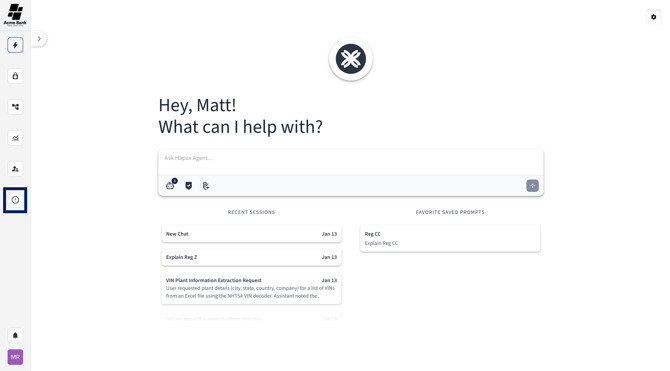
1. Select the Guardrails icon on the left navigation.
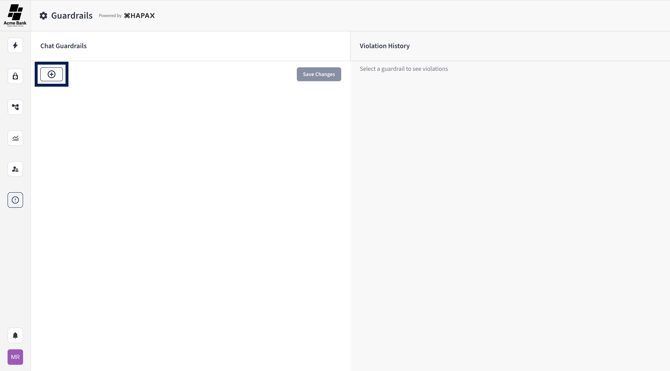
2. Select the “+” icon in the upper-left corner to add a new Guardrail.
3. Enter a Name and Description.
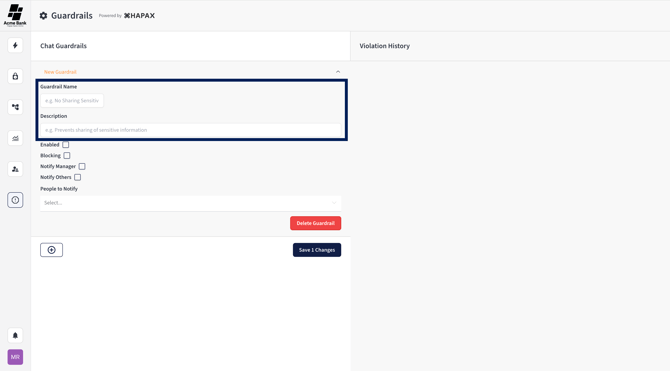
4. Choose your options (checkboxes):
-
-
Enabled: Turns this Guardrail on/off.
-
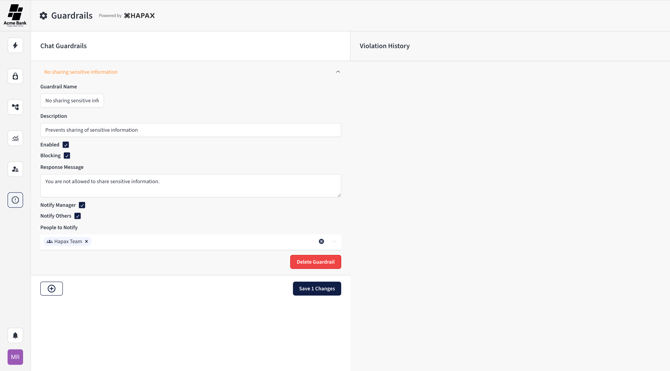
Blocking: If enabled, Hapax blocks requests that trigger this Guardrail.
-
Add a Response Message (this is the exact message the user sees when blocked).
-
-
Notify Manager: Notifies the user’s manager when this Guardrail is triggered.
-
Notify Others: Notifies specific users you select when this Guardrail is triggered.
-
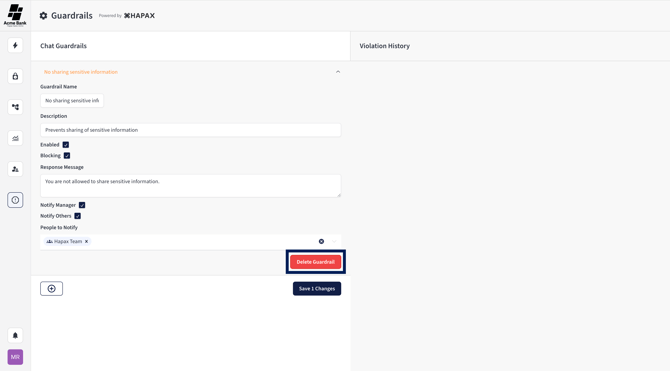
5. If you want to cancel and start over, select Delete Guardrail (before saving).
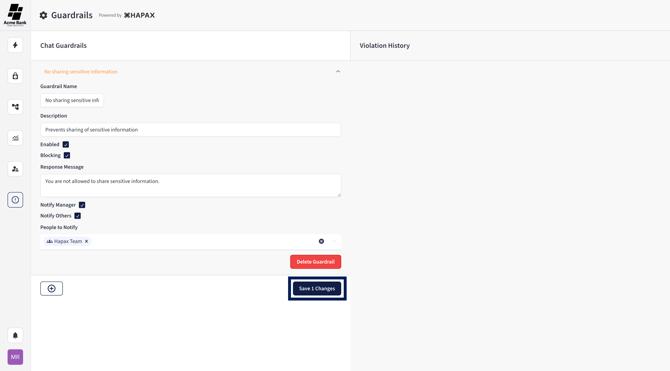
6. Select Save Changes.
How to Edit Existing Guardrails
1. Select the Guardrails icon on the left navigation.
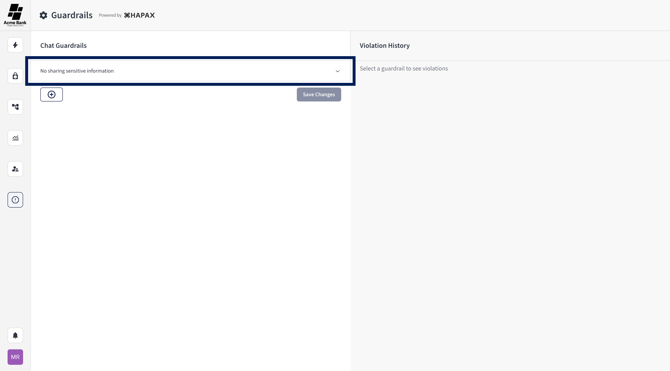
2. Select the name of the Guardrail you want to edit to expand its dropdown/details.
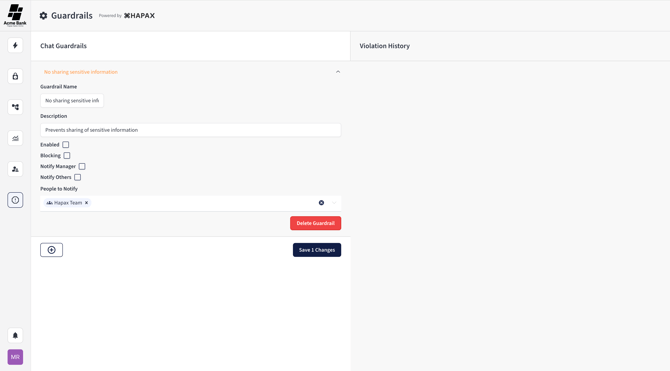
3. Update the fields you need (name, description, enabled/blocking, response message, notifications).
4. Select Save Changes.
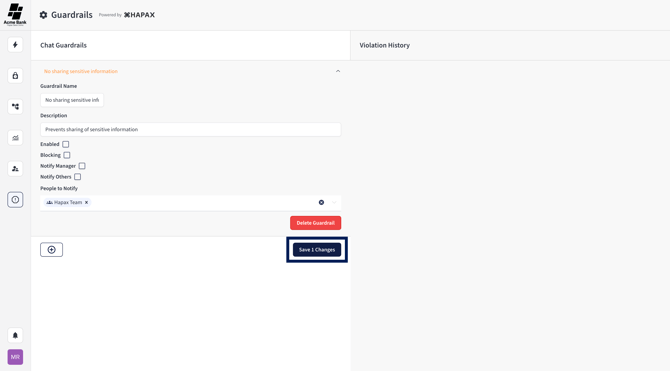
How to Delete a Guardrail
1. Select the Guardrails icon on the left navigation.
2. Select the name of the Guardrail you want to delete.
3. Select Delete Guardrail.
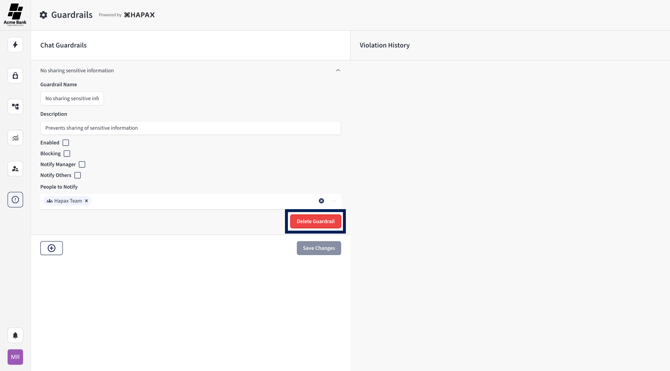
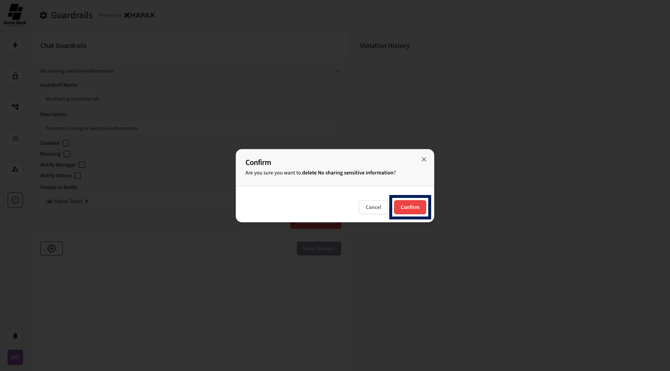
4. Select Confirm on the confirmation popup.
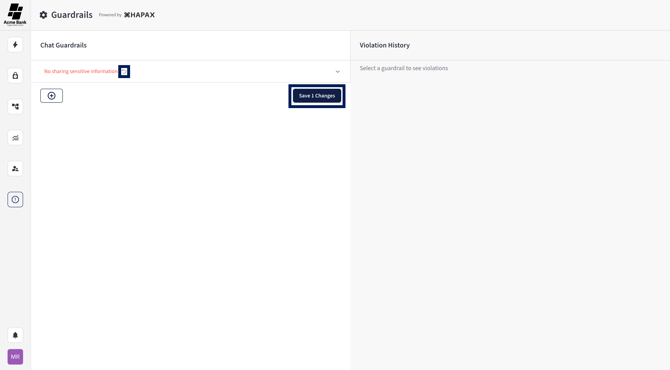
5. Select Save Changes to make the deletion permanent.
-
If you deleted the wrong Guardrail, select the undo icon next to the deleted Guardrail before saving.
FAQ
Who can create or edit Guardrails?
Typically, Guardrails are managed by users with the appropriate admin permissions. If you don’t see the Guardrails icon in the left navigation, contact your Hapax administrator.
Do Guardrails apply to both chat and workflows?
Guardrails are designed to evaluate actions before Hapax proceeds, including AI questions and workflow activity.
What’s the difference between Guardrails and file permissions?
-
File permissions control which documents a user can view or edit.
-
Guardrails control what actions Hapax will allow (or flag/block) based on policy rules.
If a Guardrail blocks a question, does Hapax still answer it “partially”?
No. A Blocking Guardrail stops the action and shows the configured Response Message instead.
Can I customize what the user sees when something is blocked?
Yes. Use the Response Message field under the Blocking option. This message is what the user sees immediately when the Guardrail is triggered.
What are some best practices for rollouts?
-
Start high-impact rules as Notify-only, then turn on Blocking once you’ve confirmed the rule is triggering correctly.
-
Use clear, plain-language names (e.g., “Customer PII in Chat” vs. “Rule 14”).
-
Keep Response Messages short, specific, and helpful.
How do Guardrails support compliance over time?
Hapax is built to help financial institutions stay aligned as regulations shift by integrating updates and surfacing relevant changes. Guardrails complement that by ensuring your teams use Hapax in a way that matches your institution’s policies and oversight expectations.