
AI Agents in Chat let you decide how Hapax should think about your question.
Instead of one generic assistant doing everything, you can toggle specialized agents that focus on:
-
Regulations – explaining and applying federal rules
-
Internal Knowledge – finding your institution’s policies, procedures, and forms
-
Web Research – pulling in and synthesizing trusted information from the broader internet
Behind the scenes, Hapax’s agent architecture routes your request to the right specialized components and combines their outputs into a single answer.
This guide walks through:
-
What each agent does
-
How to turn agents on/off in chat
-
When to use each agent
-
How to combine them effectively
-
Best practices for getting great answers
1. What Are AI Agents in Chat?
In Hapax, an AI Agent is a specialized helper with a specific job:
-
One is trained to read and interpret regulations
-
One is optimized to retrieve and reason over your internal documents
-
Another is designed to gather and synthesize external web information
The main Hapax agent orchestrates these behind the scenes—it decides which sub-agent to use and in what order—then delivers one coherent answer.
The AI Agent icon in chat gives you front-row control over this behavior so you can:
-
Turn agents on or off
-
See how many you’re currently using
-
Quickly enable All for maximum coverage or reset back to defaults
2. Types of AI Agents in Chat
When you click the AI Agent icon in chat, you’ll see options to toggle:
2.1 Regulation Agent
What it does
-
Explains and applies federal banking regulations (e.g., Reg E, Reg CC, Reg Z).
-
Compares scenarios against current regulatory expectations.
-
Helps interpret grey areas and highlight where human judgment is still needed.
Use it when
-
You’re asking “What does the rule say about…?”
-
You need a plain-language breakdown of a regulation.
-
You want to check a scenario against federal rules.
Example prompts
-
“Explain how Regulation E applies to this debit card dispute scenario.”
-
“Summarize the key Reg CC requirements for check holds over $5,000.”
2.2 Knowledge Agent
What it does
-
Searches and reasons over your internal knowledge:
-
Policies & procedures
-
Product guides and manuals
-
Forms, templates, and checklists
-
Other documents stored in the Information Vault
-
-
Ensures answers align with your institution’s documented standards, not just general industry practice.
Use it when
-
You’re asking “What does our policy say?”
-
You need to find or summarize internal procedures or forms.
-
You want answers grounded in your own documents, not just general knowledge.
Example prompts
-
“According to our policies, what’s the process for closing a business checking account?”
-
“Find and summarize any internal procedures related to debit card disputes.”
2.3 Web Research Agent
What it does
-
Performs external research on the internet through a tightly controlled, secure process.
-
Gathers, filters, and synthesizes information from trusted sources to answer questions where your internal docs or regulations may not be enough.
Use it when
-
You need up-to-date market or industry information.
-
You’re researching topics not fully covered by your internal docs.
-
You want context around trends, competitors, or best practices.
Example prompts
-
“Research current trends in small business lending for community banks and summarize key risks.”
-
“What are industry best practices for digital banking fraud monitoring?”
Tip: For regulatory or internal policy decisions, use Web Research as context, not as a replacement for your institution’s rules.
3. How to Turn AI Agents On/Off in Chat
Use these steps any time you want to adjust which agents are contributing to your response.
Step 1) Select the AI Agent Icon
In the chat interface, select the AI Agent icon (near the input box).
This opens the agent selection panel.
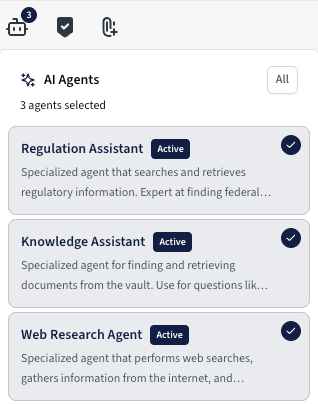
Step 2) Toggle Specific Agents
Use the agent icon to toggle assistants:
-
Regulation – explains and applies federal rules
-
Knowledge – finds and reasons over internal policies/forms
-
Web Research – gathers and synthesizes internet findings
Turn each one on or off depending on what you need for this specific question.
Step 3) Check How Many Agents Are Active
Look at the number in the top right corner of the AI Agent icon.
-
This shows how many agents are currently selected (active) in this chat.
-
If the number is 0, you’re likely using only the core assistant behavior or defaults.
Step 4) Use “All” to Quickly Enable Everything
You can:
-
Toggle agents on/off individually, or
-
Select All to enable all agents at once
Selecting All again will reset to defaults (turning off those that shouldn’t stay on by default).
This is helpful when:
-
You want a “max coverage” answer (regulations + internal docs + web context).
-
Then, once you’re done, you click All again to return to your normal configuration.
4. When to Use Each Agent (Practical Scenarios)
Here are some common patterns to help staff decide which agents to toggle.
4.1 Regulation Only
Use Regulation when:
-
You need a pure regulatory interpretation without mixing in internal policies or web context.
-
Example:
-
“Explain Reg E timelines for provisional credit in a debit card dispute.”
-
Agents:
-
✅ Regulation
-
⬜ Knowledge
-
⬜ Web Research
4.2 Knowledge Only
Use Knowledge when:
-
You need to know “what we do here” based on your institution’s documents.
-
Example:
-
“Using our debit card dispute policy, walk me through the step-by-step process front-line staff should follow.”
-
Agents:
-
⬜ Regulation
-
✅ Knowledge
-
⬜ Web Research
4.3 Regulation + Knowledge
Use both when:
-
You’re asking something like:
-
“What does the regulation say, and does our current policy match it?”
-
-
Or:
-
“Are we missing anything in our procedure compared to the federal rule?”
-
This combo is powerful for gap analysis:
-
Regulation Agent provides the rule
-
Knowledge Agent provides your policy
-
Hapax can compare them and call out differences.
Agents:
-
✅ Regulation
-
✅ Knowledge
-
⬜ Web Research
4.4 Knowledge + Web Research
Use Knowledge + Web Research when:
-
You want to modernize or benchmark your internal docs against industry practice.
-
Example:
-
“Compare our overdraft communication policy to common industry practices and suggest improvements.”
-
Agents:
-
⬜ Regulation
-
✅ Knowledge
-
✅ Web Research
4.5 All Agents
Use All when:
-
You’re doing broad strategy work or complex analysis where:
-
Regulations matter
-
Your policies matter
-
And fresh external context matters
-
Example:
“We’re redesigning our debit card dispute process. Use federal regulations, our current policies, and external best practices to propose an improved workflow with key steps and customer communication templates.”
Agents:
-
✅ Regulation
-
✅ Knowledge
-
✅ Web Research
5. Best Practices for Using AI Agents in Chat
Hapax’s general prompting tips still apply—and they get more powerful when used with agents.
5.1 Be Explicit About What You Want Each Agent to Do
Instead of:
“Help me with debit card disputes.”
Try:
“Using the Regulation agent, explain what Reg E requires for debit card disputes. Using the Knowledge agent, compare that to our current dispute procedure and highlight any gaps.”
5.2 Provide Context About Your Role
Example:
“I’m a branch manager at a community bank. Using our internal policies (Knowledge) and federal regulations (Regulation), summarize what I need to train my staff on for check holds.”
This context helps agents pick the right details and level of depth.
5.3 Ask for a Clear Output Format
Tell Hapax how to structure the answer:
-
Bullet list
-
Table (e.g., “Reg requirement” vs “Our policy”)
-
Step-by-step procedure
-
Email draft or training outline
Example:
“Provide (1) a short summary, (2) a table comparing Reg E vs our policy, and (3) recommended changes.”
5.4 Start Narrow, Then Expand
If you’re not sure which agents you need:
-
Start with Knowledge for internal alignment.
-
Turn on Regulation if you need to tie it back to federal rules.
-
Add Web Research when you need external context or examples.
This keeps answers focused and easier to review.
5.5 Keep One Subject Per Thread
For best performance:
-
Keep each chat focused on a single topic.
-
Start a new session when you change to a completely different subject.
This helps agents build and reuse context cleanly (especially Knowledge and Regulation).
6. Troubleshooting & FAQs
Q: I turned on an agent but I’m not sure it was used. What do I do?
A: Ask directly in the chat:
“Which agents did you use to answer this question, and what did each one contribute?”
You can also pair this with the Agent Workspace view to see context files and processes used.
Q: My answer feels generic, not specific to my bank.
-
Make sure the Knowledge agent is enabled.
-
Reference your bank in the prompt (e.g., “Using our institution’s policies and documents…”).
Q: I’m worried Web Research might pull in untrusted or irrelevant sources.
-
Only enable Web Research when you truly need external context.
-
Use Regulation + Knowledge when working on regulatory or policy-critical decisions.
Q: Can I create my own custom agents?
Today, you control which pre-built agents are active in chat. Longer term, Hapax’s agent architecture is designed so institutions can add more specialized agents and workflows over time without disrupting existing workflows.
7. Summary
Using AI Agents in Chat turns Hapax from a single, generic assistant into a team of specialists you can toggle on demand:
-
Regulation – reads and explains federal rules
-
Knowledge – finds and applies your internal policies and forms
-
Web Research – collects and synthesizes external information
By selecting the AI Agent icon, choosing the right mix of agents, and using clear, context-rich prompts, you can:
-
Get more accurate, institution-aligned answers
-
See where each piece of information is coming from
-
Confidently use Hapax for regulatory, operational, and strategic work
Use this guide as your playbook for choosing the right agents for the right questions—so every chat session with Hapax feels like working with the exact experts you need.