
If you no longer need a Saved Prompt, you can delete it directly from your Agent Chat Settings. Follow the steps below to remove a prompt from your list.
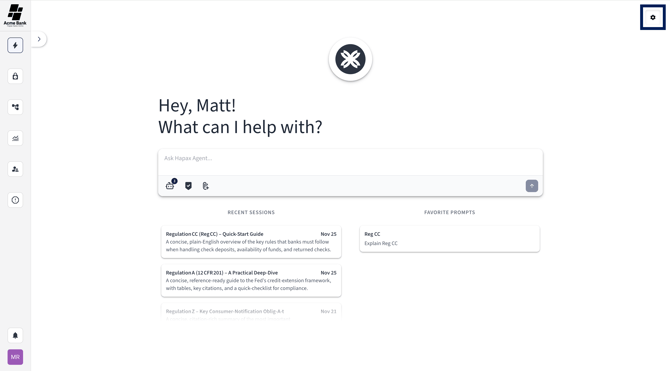
Step 1) Open Agent Chat Settings
Select the gear-shaped icon in the top left corner of the platform.
This will open your Agent Chat Settings where all Saved Prompts are managed.
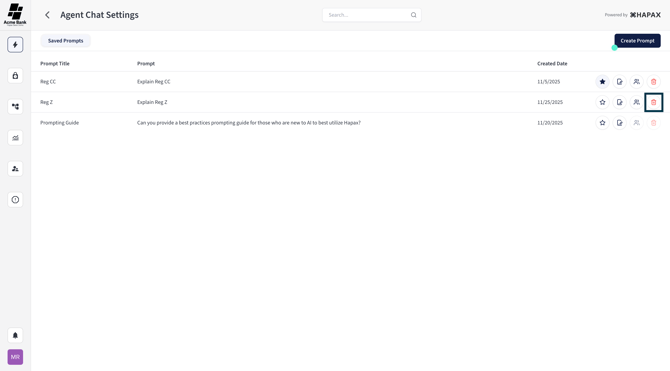
Step 2) Select the Trash Can Icon
Locate the Saved Prompt you would like to delete. On the right side of the prompt, select the trash can icon. (If this icon is unavailable to select, that means you have not been given permission to delete the prompt.)
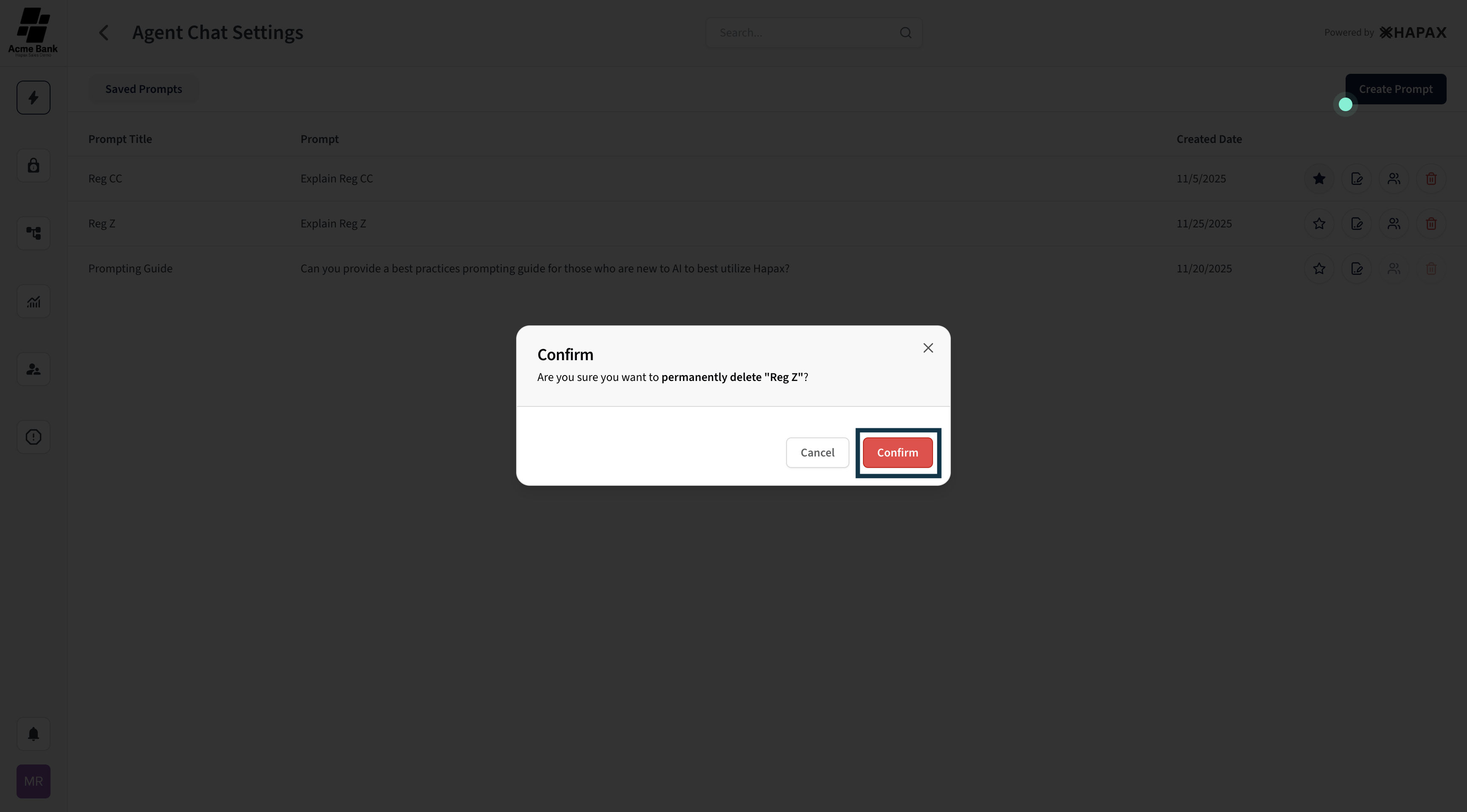
Step 3) Confirm Deletion
A confirmation popup will appear asking you to verify the deletion.
Select Confirm to permanently delete the Saved Prompt.
Done!
Your Saved Prompt has been successfully deleted. Once removed, it cannot be recovered, so be sure you no longer need the prompt before confirming deletion.